Accepting Square Payments
Connect your Square account to accept online credit card and debit card payments through your invoices
Accepting Square Payments
Square is a popular payment processing platform that makes it easy to accept credit cards, debit cards, and digital wallets. When you connect your Square account to KorField Pro, your clients can pay invoices online with the click of a button, and payments are deposited directly into your Square account.
Why use Square?
- Accept all major credit and debit cards
- Mobile-friendly payment experience
- Automatic payment confirmation
- Seamless integration with your existing Square account
- Funds deposited directly to your bank account through Square
Setting Up Square Payments
Step 1: Navigate to Payment Settings
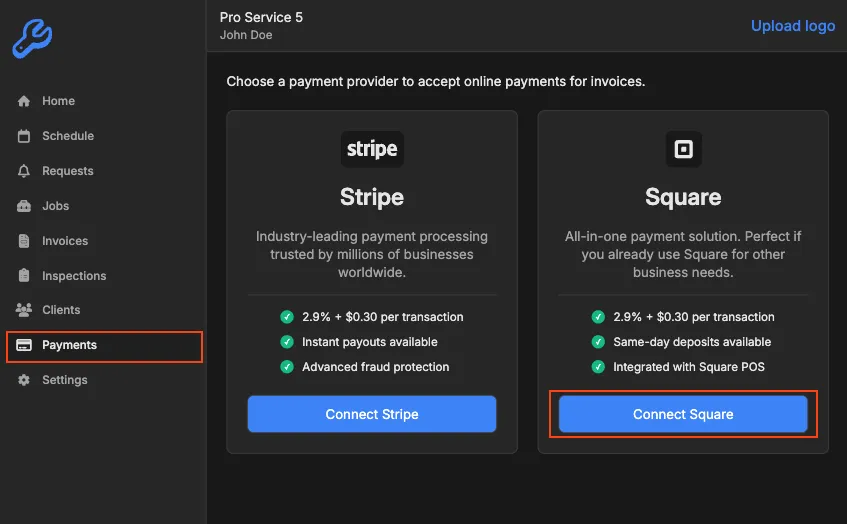
When you first access the Payments page, you’ll see options for payment providers.
- Open the KorField Pro mobile app or web dashboard
- Select Payments
- You’ll see cards for Stripe and Square
- Tap Connect on the Square card
Step 3: Connect Your Square Account
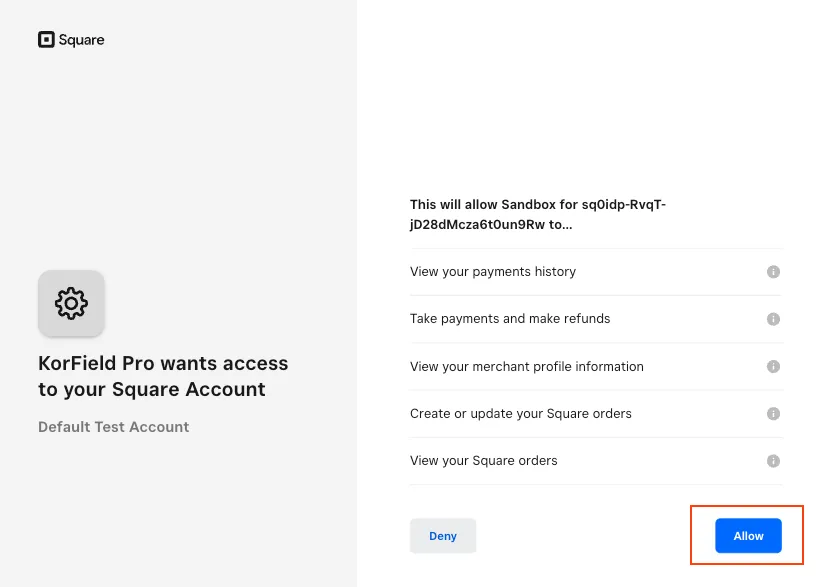
- You’ll be redirected to Square’s secure login page
- Sign in to your Square account
- Review the permissions KorField Pro is requesting:
- Read payment information
- Process payments
- Access business profile
- Manage orders
- Tap Allow to authorize the connection
- You’ll be redirected back to KorField Pro
Step 4: Verify Connection
Once connected, the Payments page will show:
- “Square Connected” status
- Your Square business name
- The option to disconnect if needed
Your Square account is now ready to accept payments!
How Square Payments Work
For Business Owners
When you send an invoice:
- The invoice email includes a “Pay Online” button
- The client portal shows the same payment option
- Both link to a secure Square payment page
When a client pays:
- Payment is processed through Square instantly
- The invoice status updates to “Paid” automatically in KorField Pro
- Funds are deposited to your Square account (typically within 1-2 business days)
- You and your client receive payment confirmation emails
In your dashboard:
- Invoice balance updates immediately
- Payment details are recorded automatically
- You can view transaction details in your Square Dashboard
For Your Clients
When clients receive an invoice from you:
- They open the invoice email or access the client portal
- Click “Pay Online”
- Enter their credit card, debit card, or digital wallet information on Square’s secure payment page
- Submit payment
- Receive instant confirmation
The entire process takes less than a minute and requires no account creation.
Managing Your Square Connection
Viewing Connection Status
To check if Square is connected:
- Go to Settings → Payments
- Look for the “Square Connected” message
Reconnecting Square
Square connections are refreshed automatically, but if you see a “Reconnect” message:
- Tap “Reconnect Square Account”
- Sign in to Square again
- Authorize the connection
This happens automatically in the background every few days to keep your connection secure.
Disconnecting Square
If you need to disconnect Square:
- Go to Settings → Payments
- Look for disconnect option (if available)
- Confirm disconnection
Important: After disconnecting:
- Existing invoices with Square payment links will no longer work
- Clients won’t be able to pay online until you reconnect or choose another provider
- Past payment records remain in your system
Best Practices
For Business Owners
- Keep your Square account active - Make sure your Square account is in good standing
- Monitor both dashboards - Check KorField Pro for invoice status and Square for detailed transaction information
- Review transaction fees - Square charges processing fees (typically 2.9% + $0.30 per transaction). These are deducted before funds reach your bank.
- Verify bank account - Ensure your bank account is connected in Square for automatic deposits
- Reconcile regularly - Match payments in KorField Pro with deposits in your Square account
Understanding Payment Flow
What you see in KorField Pro:
- Invoice marked as “Paid”
- Payment amount recorded
- Payment date and time
What you see in Square:
- Full transaction details
- Processing fees
- Settlement status (pending or complete)
- Payout schedule
The invoice total shown to clients is the full amount. Square processing fees are deducted on Square’s side before the funds reach your bank.
For Your Clients
When you send invoices to clients, they’ll appreciate:
- Familiar payment experience - Many customers already use Square
- Security - Square’s trusted payment processing
- Speed - Instant payment confirmation
- Flexibility - Multiple payment methods (credit card, debit card, Apple Pay, Google Pay)
Troubleshooting
Square Not Showing as Payment Option
If Square doesn’t appear on your invoices:
- Go to Settings → Payments
- Verify you see “Square Connected” status
- If you see “Not Connected” or “Reconnect”, follow the connection steps again
- Send a new invoice (existing invoices sent before connection won’t update automatically)
“Connection Expired” Message
Square tokens refresh automatically, but if you see this message:
- The refresh process failed (this is rare)
- Tap “Reconnect Square Account”
- Sign in to Square again
- The connection will be restored
Client Can’t Complete Payment
If a client reports payment issues:
- Ask them to try a different card - Sometimes banks decline online transactions
- Check Square status - Visit Square’s status page to see if there are any service issues
- Verify the invoice amount - Very large amounts may trigger fraud protection
- Ensure Square account is active - Log into your Square Dashboard to verify no account issues
Payment Received But Invoice Not Updated
This is very rare because updates are automatic. If it happens:
- Wait 5 minutes - Sometimes there’s a brief delay
- Check your Square Dashboard - Verify the payment appears there
- Refresh the invoice page in KorField Pro
- Contact support with the transaction ID from Square if the issue persists
Client Sees “Payment Provider Not Available”
This means:
- Your Square connection is no longer active
- Go to Settings → Payments and reconnect
- Ask the client to try again after reconnection
Frequently Asked Questions
Can I use both Stripe and Square? Currently, you can connect one payment provider at a time (either Stripe or Square). To switch providers, disconnect the current one in Settings → Payments, then connect the other.
Do I need a Square business account? Any Square account works - personal or business. However, a business account is recommended for:
- Better record-keeping
- Proper tax reporting
- Professional appearance to clients
- Access to business-specific Square features
What are Square’s fees? Square typically charges 2.9% + $0.30 per online transaction. For example, on a $100 invoice, Square deducts $3.20, and you receive $96.80. Check Square’s pricing page for current rates as they may vary by country and account type.
How quickly do I receive funds?
- Payments are processed instantly on Square
- Funds are transferred to your bank account according to Square’s deposit schedule
- Most businesses receive deposits 1-2 business days after the payment
- Check your Square Dashboard for exact deposit schedule
Can I accept partial payments? Not currently through the online payment system. The “Pay Online” button requires full payment. For partial payments, clients would need to contact you directly, or you can create multiple invoices for installment payments.
What payment methods can clients use? Through Square, clients can pay with:
- Credit cards (Visa, Mastercard, American Express, Discover)
- Debit cards
- Apple Pay (on compatible devices)
- Google Pay (on compatible devices)
Can I refund a payment? Refunds must be processed through your Square Dashboard:
- Log into Square
- Find the transaction
- Process the refund
- Manually update the invoice in KorField Pro if needed
What if my Square account gets suspended? If Square suspends your account:
- Existing payment links will stop working
- Clients won’t be able to pay online
- Resolve the issue with Square support
- Reconnect in KorField Pro once resolved
- Consider adding alternative payment options (like Zelle, Venmo, or Cash) in Settings → Payment Accounts
How do I see Square payment details? KorField Pro shows:
- Payment received: Yes/No
- Amount paid
- Payment date
For detailed information (fees, payout status, transaction ID), log into your Square Dashboard at squareup.com.
Need More Help?
Have questions about setting up Square payments or troubleshooting payment issues? Contact our support team at support@korfieldpro.com or visit our help center.
Square Support: For issues specific to your Square account (account access, payouts, transaction disputes), contact Square Support directly.