Notes on Jobs, Clients, and Properties
Keep the details that matter — gate codes, access instructions, customer preferences — and link each note to the client, the property, or both so the right context shows up on every job.
Notes on Jobs, Clients, and Properties
Every job comes with details worth remembering — the gate code, where to park, which dog is friendly and which isn’t, how the customer likes to be reached. Notes are where those details live. And because you can link a note to the client, the property, or both, the right reminders follow you to the right job without you having to copy them over and over.
It’s the difference between writing “gate code is 4827” once and having it appear on every future visit to that address, versus re-typing it every single time.
What it does for you:
- Lets you jot a quick note on any job, client, or property
- Lets you choose where a note lives by linking it to the client, the property, or both
- Shows a clear “Linked to…” label on every note so you always know its scope
- Surfaces the right notes automatically — property notes on every job at that address, client notes across all of that customer’s jobs and locations
- Keeps a running history of who wrote what, and when
How It Works
A note can be tied to two things: the client (the person or business) and the property (a specific service address). When you write a note, you decide which it belongs to:
- Linked to property — the note belongs to that address. It shows up on every job at that property, no matter which customer the job is for. Perfect for gate codes, lockbox combinations, parking, and access instructions.
- Linked to client — the note belongs to that customer. It travels with them across all of their jobs and every property they own. Perfect for preferences, account details, and “always call before arriving” reminders.
- Linked to both — the note belongs to the client and this property together.
- Not linked — a note just for this job, with no wider scope.
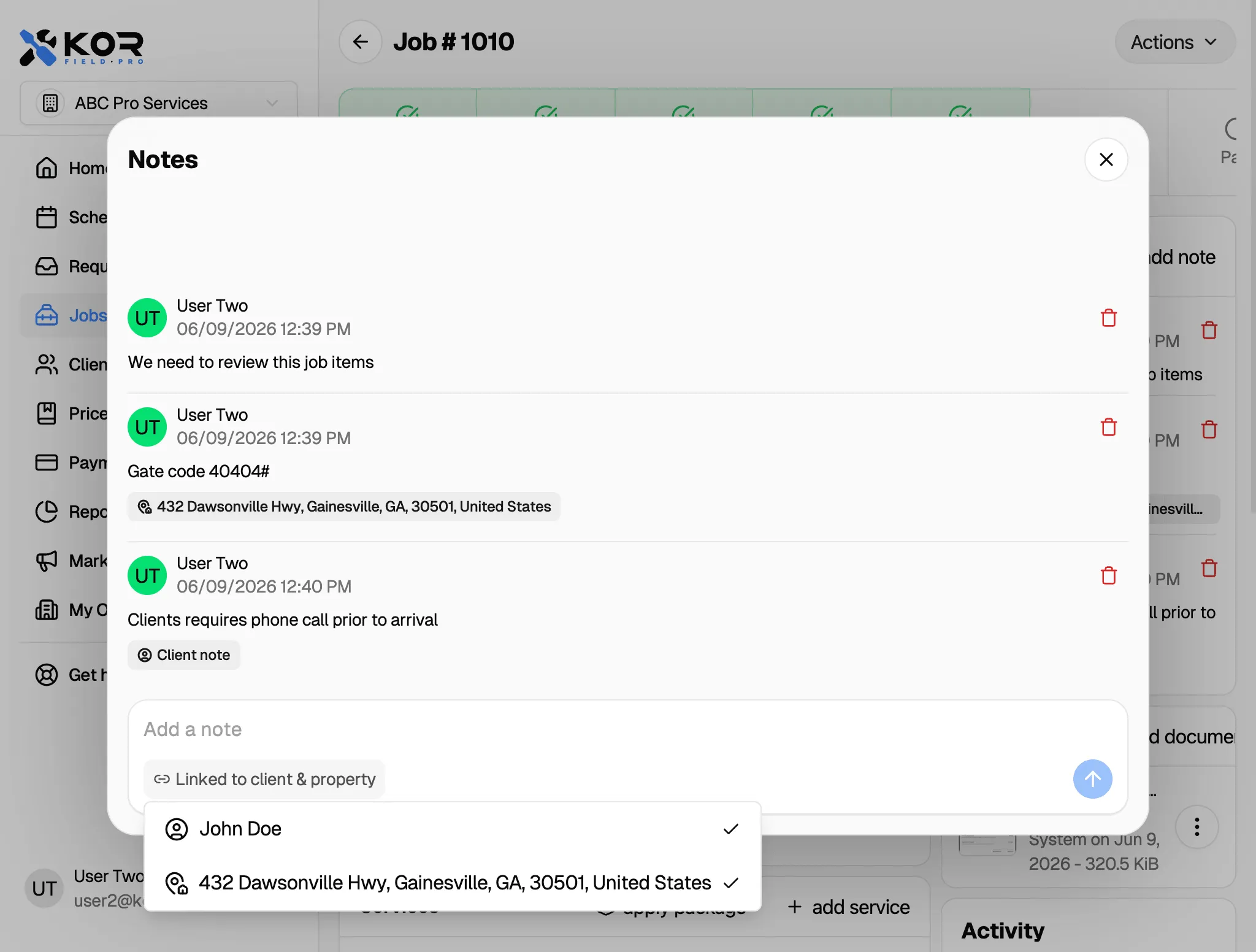
Adding a note
- Open a job, a client, or a property.
- Find the Notes section and tap add note.
- Type your note in the composer.
- Tap the link button (it starts on Not linked) and choose what to link the note to — the client, the property, or both.
- Send the note. It now shows a “Linked to…” label so anyone looking at it knows its scope.
Where your notes show up
- A property note appears on every job at that address, and on the property itself.
- A client note appears on all of that client’s jobs and across each of their properties.
- A note linked to both appears wherever that client and that property overlap.
This is what makes notes worth writing once. Add “lockbox code 1199” as a property note, and every technician who ever works that address will see it.
Tips for Useful Notes
- Use property notes for anything about the place — access, parking, pets, where the panel is. These are the details that stay true no matter who books the work.
- Use client notes for anything about the person — how they like to be contacted, billing quirks, a heads-up about a past issue.
- Keep them short and scannable. A note your team reads at the door beats a paragraph nobody finishes.
- Check the “Linked to…” label before you send, so the note lands where you expect.
Frequently Asked Questions
What’s the difference between a client note and a property note? A client note follows the customer everywhere — across all their jobs and every address they own. A property note stays with a single address and shows up on every job at that location, even for different customers. Use whichever matches what the note is actually about.
Can I link one note to both a client and a property? Yes. Choose both in the link menu, and the note will be tied to that client and that property together.
What happens if I don’t link a note? It stays on just that one job as an internal note. Nothing wrong with that for a one-off detail — but if it’s something you’ll want next time, linking it to the property or client saves you re-typing it.
Who can see and add notes? Notes are internal to your team — they’re for your dispatchers and technicians, not your customers. What each team member can see and do is governed by their role’s permissions.
Can I change a note’s link after I write it? Notes are best linked when you create them. If you need to adjust scope, add a new note with the correct link.
Need a Hand?
If a note isn’t showing up where you expect, or you’re not sure whether to link something to the client or the property, reach out to our support team at support@korfieldpro.com and we’ll help you sort it out.