The Schedule Map View
See every job on a map by location, color-coded by technician, and track your team's live position in the field — all from the Schedule page.
The Schedule Map View
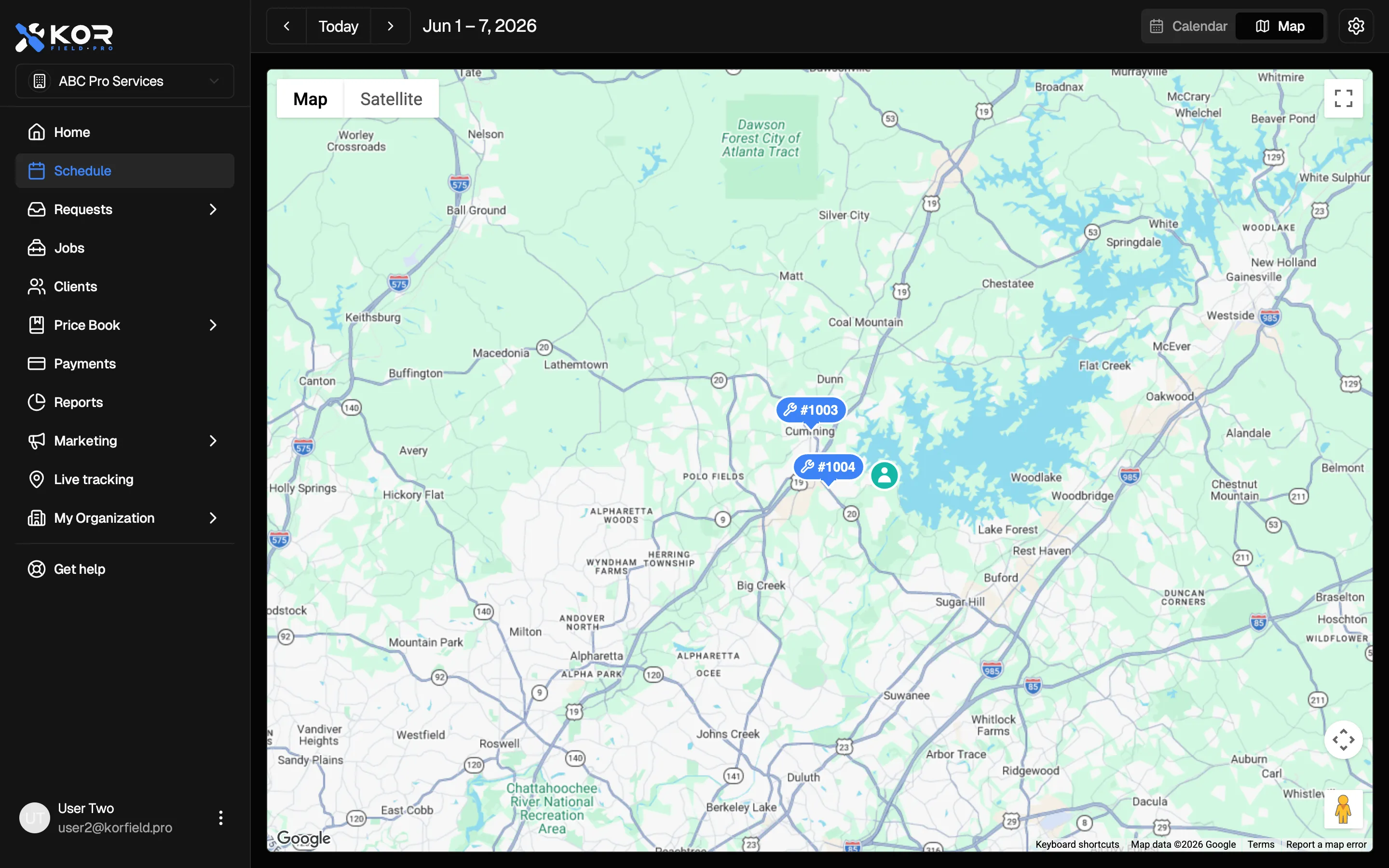
The Schedule page has two ways to look at your day. The Calendar lays your jobs out by time. The Map lays them out by place — every job plotted on a map by its address, color-coded by the technician assigned to it. When your technicians are clocked in, you’ll also see where they are right now, so you can dispatch based on who’s actually closest.
It’s built for the moment a new job comes in and you need to decide who takes it, or when you just want a bird’s-eye view of how spread out the day is.
What it does for you:
- Plots every scheduled job on a map by its service address
- Color-codes each job pin to match the technician it’s assigned to
- Shows your technicians’ live locations on the same map while they’re on shift
- Lets you switch instantly between the Calendar and the Map for the same day or week
- Helps dispatchers send the closest available technician to the next job
How It Works
- Open the Schedule page.
- In the top-right corner, toggle from Calendar to Map.
- The map loads with a pin for every job in the current date range, each colored to match its assigned technician.
- If any technicians are currently clocked in, their live positions appear as their own pins on the map, in their technician color.
- Use the date controls (Previous, Today, Next) and the Week / Day selector exactly as you do in the calendar — the map updates to match.
You can switch back to the Calendar at any time; your place in the schedule is kept.
Live Technician Locations
When a technician starts their shift in the field, their device shares its location with your account, and that location shows up on the schedule map in real time. This is the same tracking that powers the Live tracking page — the map view simply brings it together with your scheduled jobs so you can see the whole picture in one place.
A technician’s live pin uses the same color as their job pins, so it’s easy to tell who is where.
Good to know:
- Live locations only appear while a technician is actively clocked in.
- If no one is on shift, the map still shows all of your scheduled jobs — you just won’t see any live team pins.
- Seeing live technician positions requires the view tracking permission. If you don’t see team pins, check that your role includes it under your organization’s permissions.
Frequently Asked Questions
Why isn’t a job showing up on the map? A job needs a service address that can be located on the map. If a job has no address or an address that can’t be matched, it won’t appear as a pin. Open the job and confirm its address is complete.
Why don’t I see my technicians on the map? Live pins only show for technicians who are currently clocked in. If everyone is off shift, you’ll only see job pins. Also make sure your role has the view tracking permission.
Can technicians see each other’s locations? The map view is for the back office. What each team member can see is governed by their role’s permissions — see your organization settings.
Does switching to the map lose my place in the schedule? No. The map and calendar share the same date range, and switching between them keeps you on the same day or week.
Need a Hand?
If the map isn’t behaving as you expect — jobs missing, team pins not appearing, or anything else — reach out and we’ll help you sort it out.