Creating & Sending Invoices
Learn how to create invoices, add line items, and send them to clients by email or SMS
Last updated:
Creating & Sending Invoices
Invoices help you bill clients quickly and get paid faster. In KorField Pro, you can create invoices from scratch or from accepted estimates, then send them by email or SMS.
Creating an Invoice
Option 1: Create a New Invoice
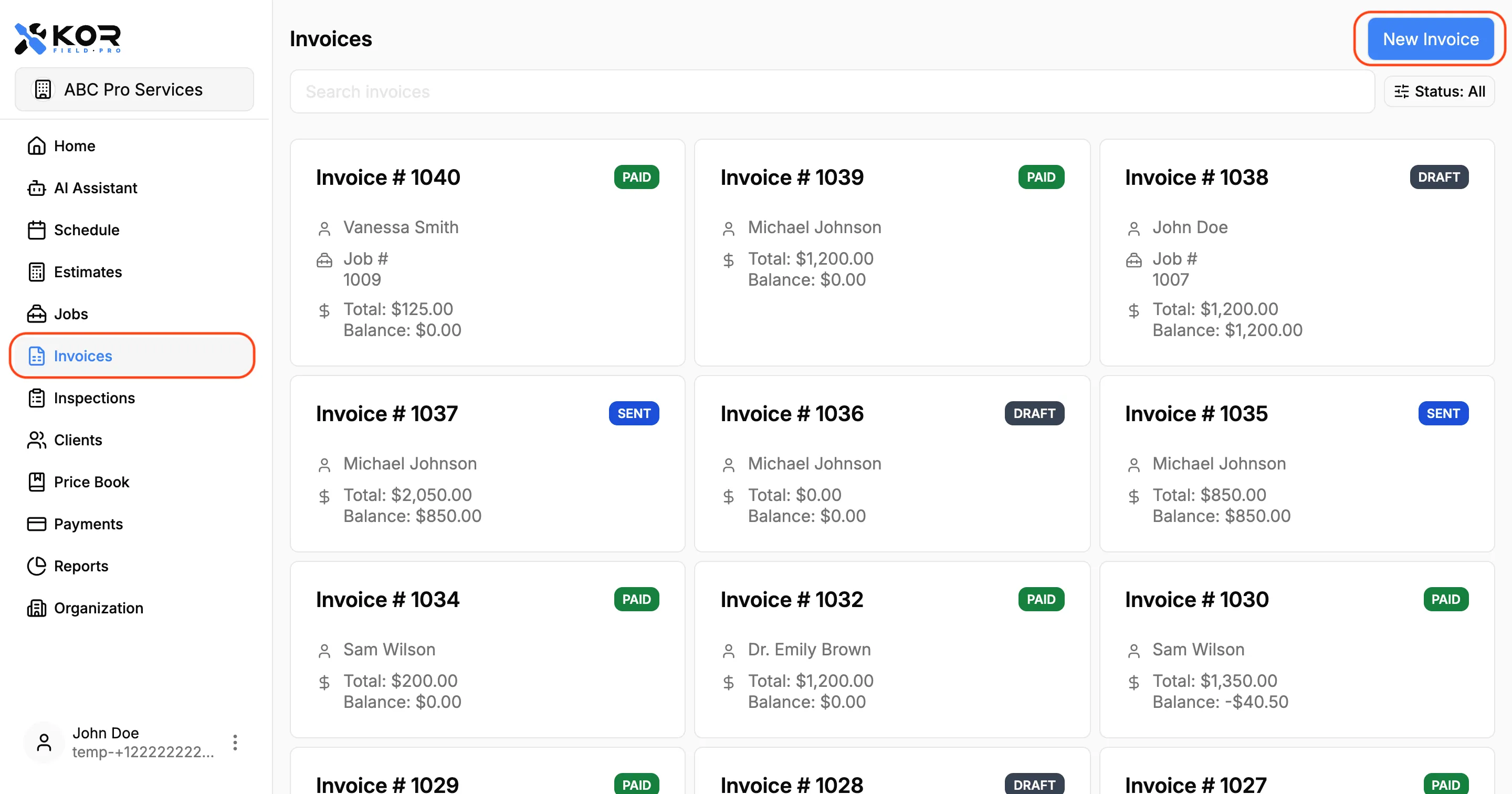
- Open Invoices from the side menu.
- Tap New invoice.
- Select a client.
- Add your invoice items and pricing.
- Set the invoice terms.
Option 2: Convert an Accepted Estimate
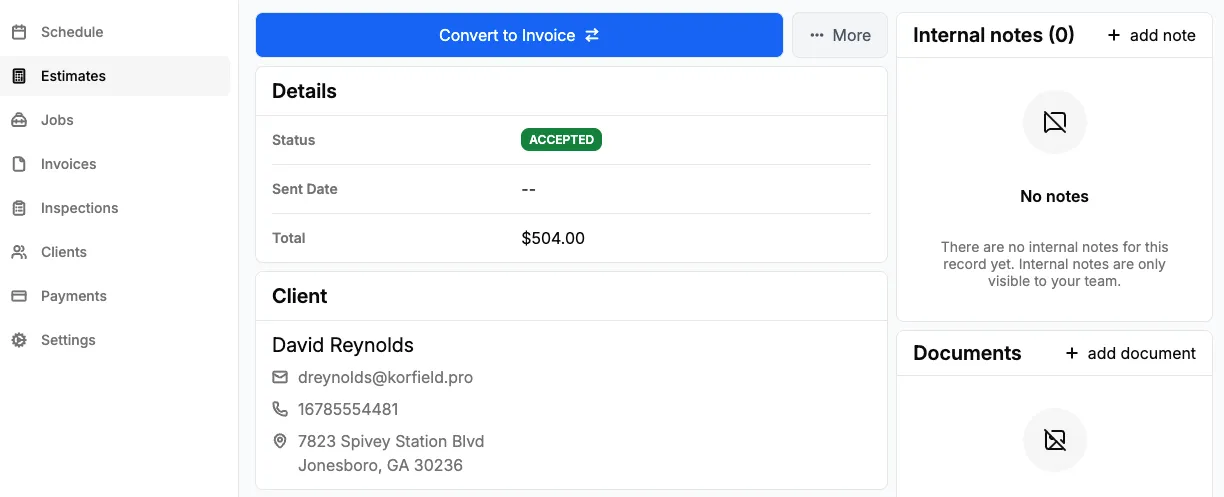
- Open the accepted estimate.
- Tap Convert to Invoice.
- Review the copied line items and totals.
- Adjust anything needed before sending.
Adding and Editing Line Items
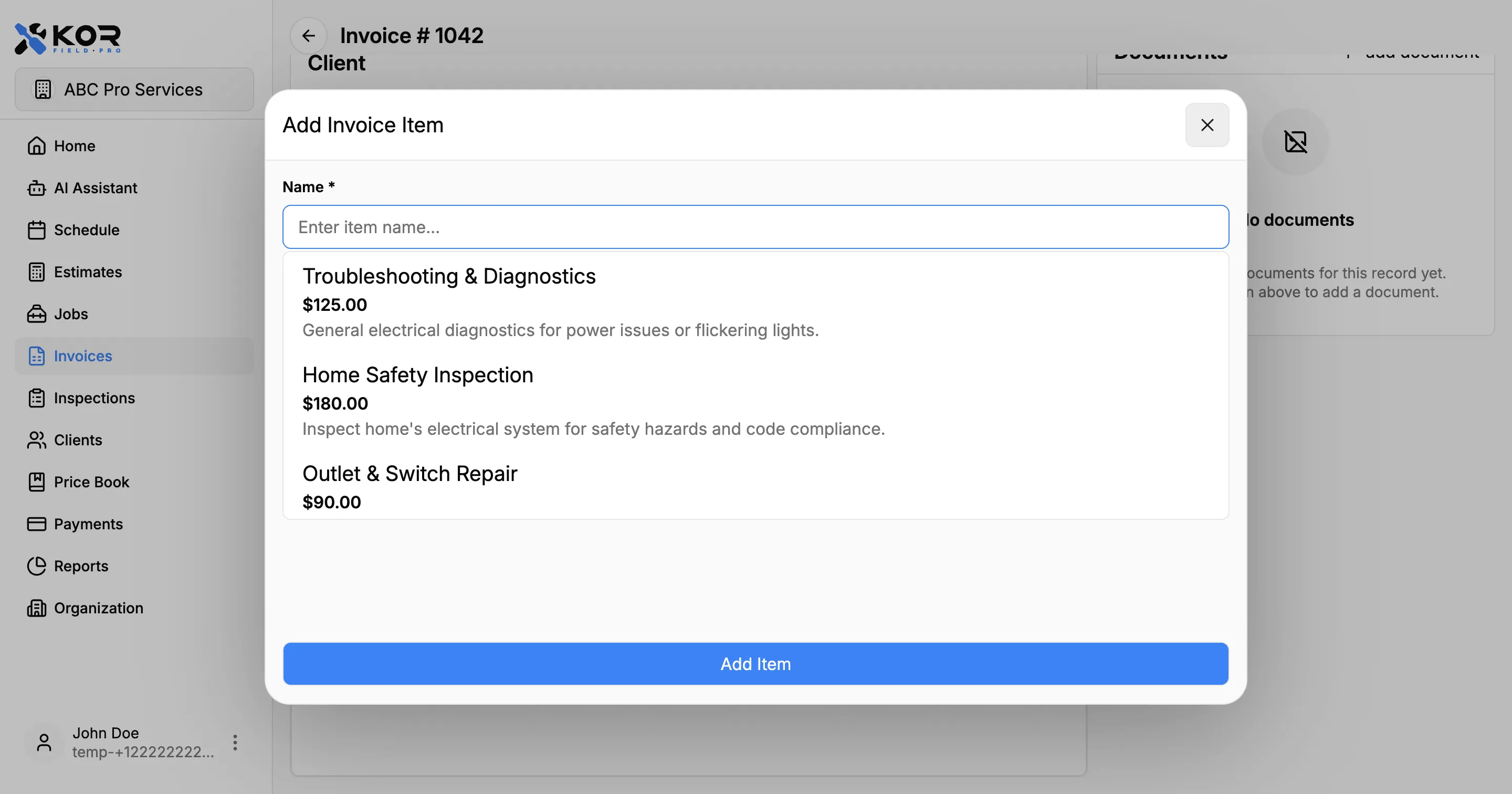
Inside invoice details, use the Invoice Items section to:
- Add services from your price book
- Add custom one-off items
- Edit item descriptions and prices
- Remove items you do not want to bill
Totals are calculated automatically as you update items.
Sending an Invoice
When your invoice is ready, tap Send Invoice and choose how to deliver it.
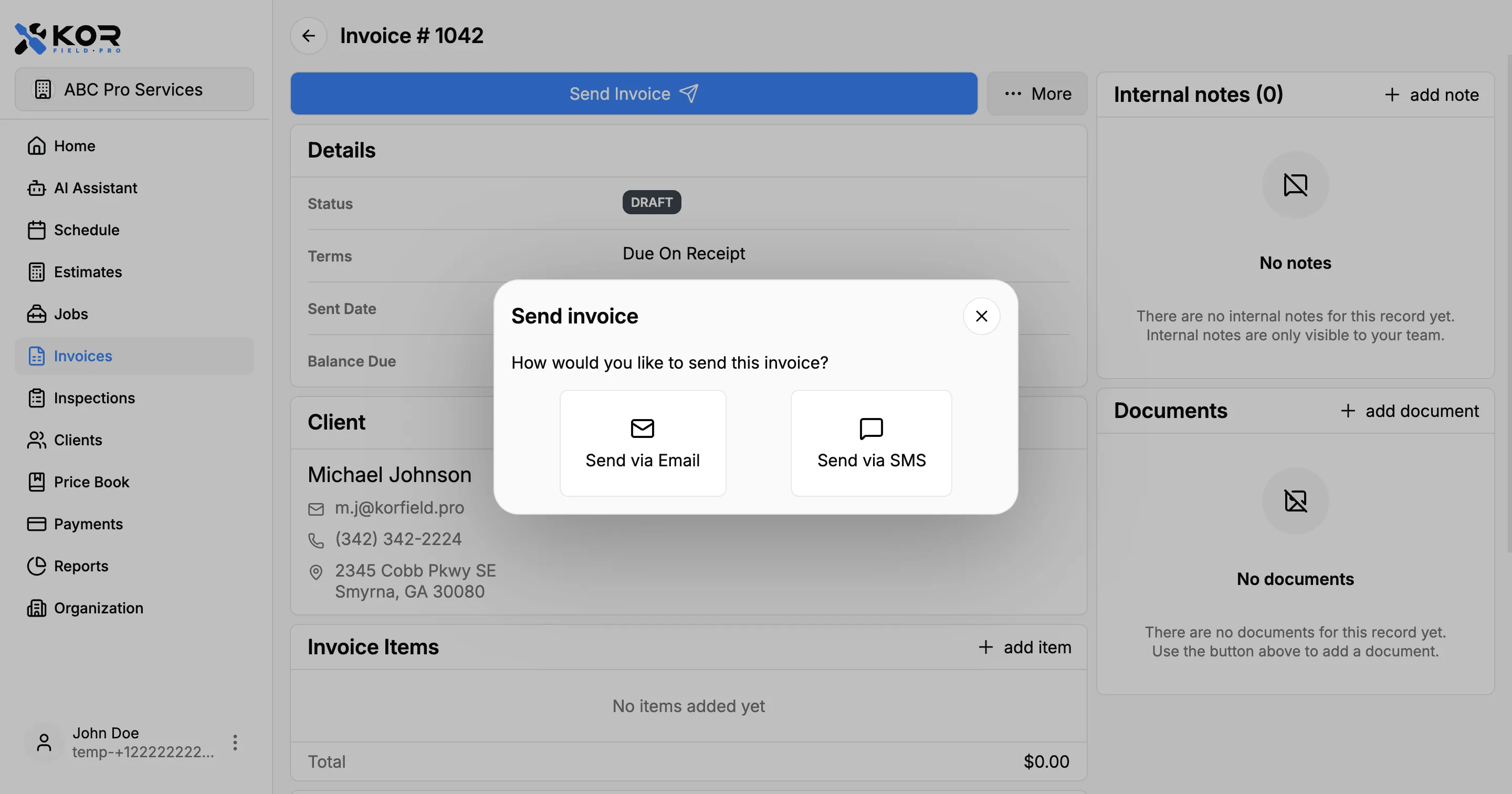
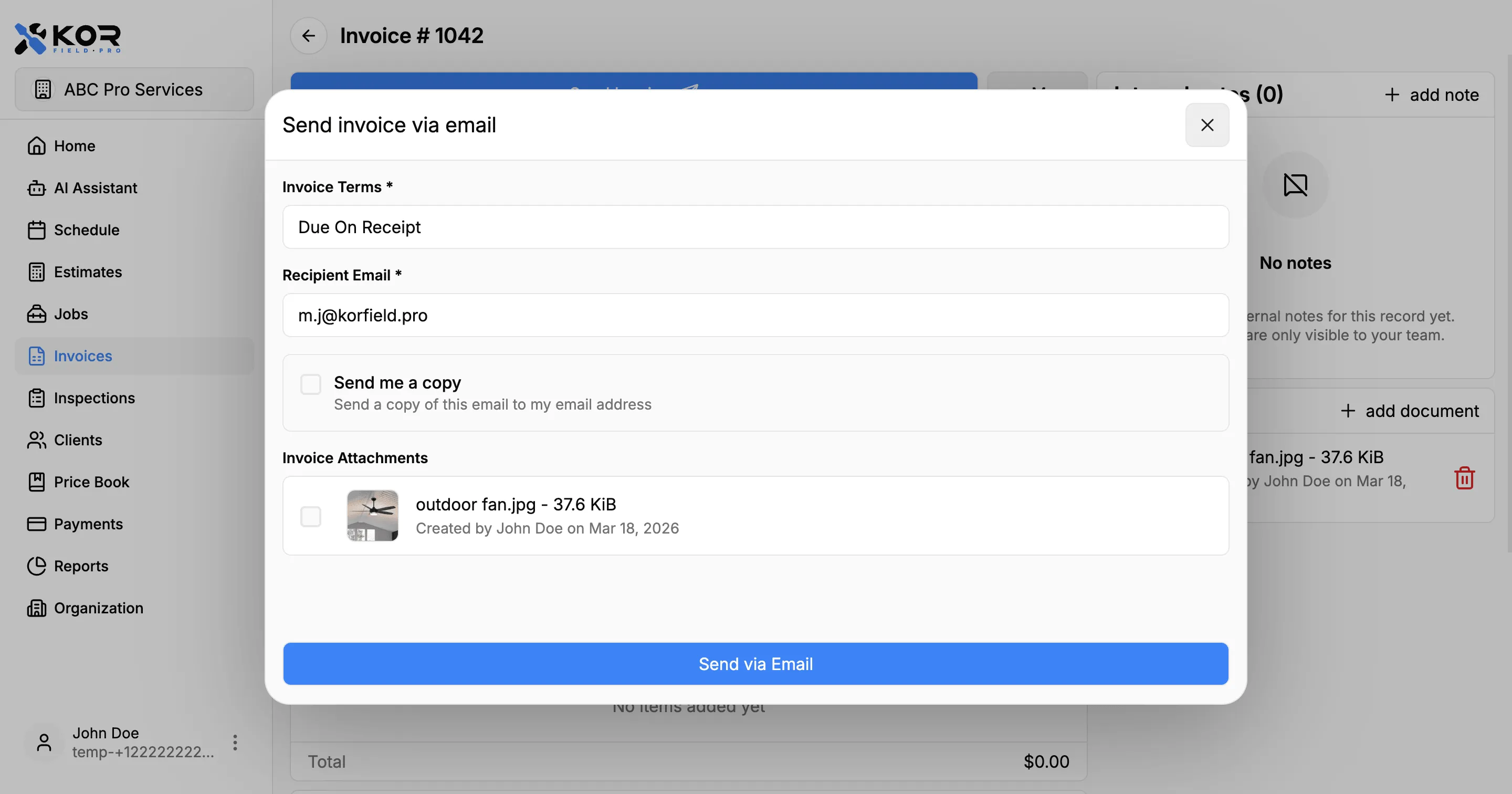
Send by Email
- The client’s email is pre-filled when available.
- You can optionally BCC yourself.
- The email includes a branded message and a PDF invoice attachment.
- The client also gets a link to view and pay through the portal.
Send by SMS
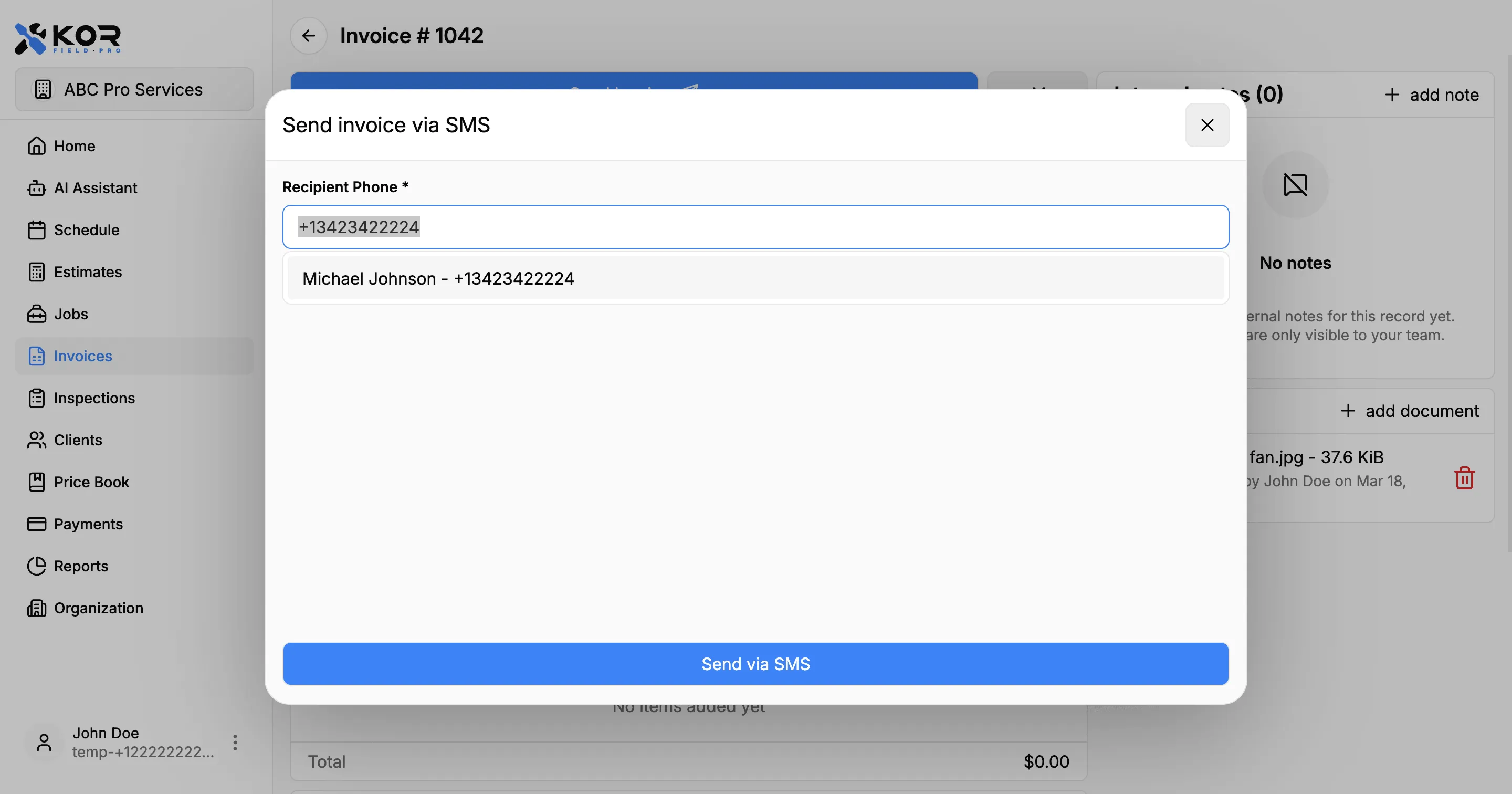
- The client’s phone number is pre-filled when available.
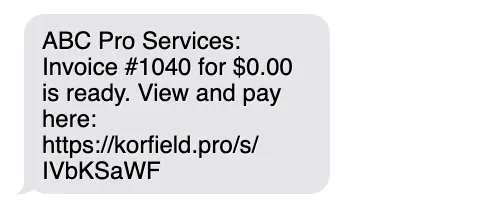
- The text message includes invoice details and a secure short link.
- The short link opens the client portal so the client can view and pay quickly.
If both email and phone are available, you can send through both channels for better delivery.
What Clients Receive
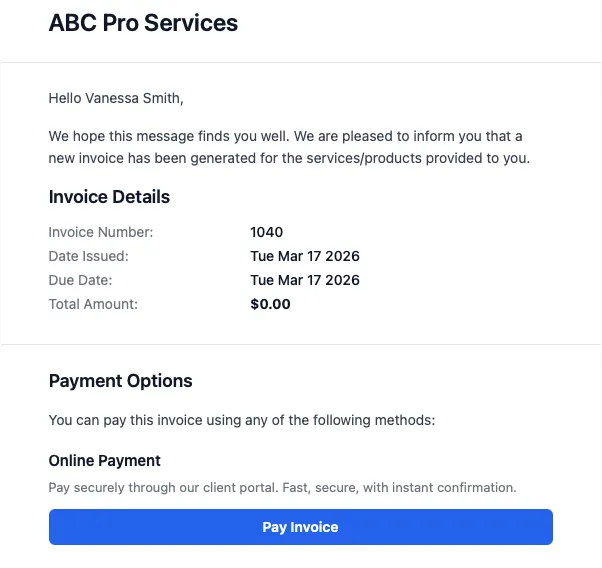
Clients receive:
- Invoice number and amount due
- Your business branding and contact details
- A portal link to view invoice details
- Online payment options (when enabled)
Best Practices
- Double-check line items before sending.
- Use clear terms and due dates.
- Send by both email and SMS for time-sensitive invoices.
- Follow up on invoices that remain unpaid after the due date.
Need More Help?
Have questions about invoices? Contact support at support@korfieldpro.com or visit the help center.