Estimate Settings
Customize how your estimates look to clients by setting a custom footer message for all estimate PDFs
Last updated:
Estimate Settings
Estimate Settings let you customize how your estimates appear to clients. Currently, you can set a custom footer message that prints at the bottom of every estimate PDF.
Opening Estimate Settings
- Open Estimates from the side menu.
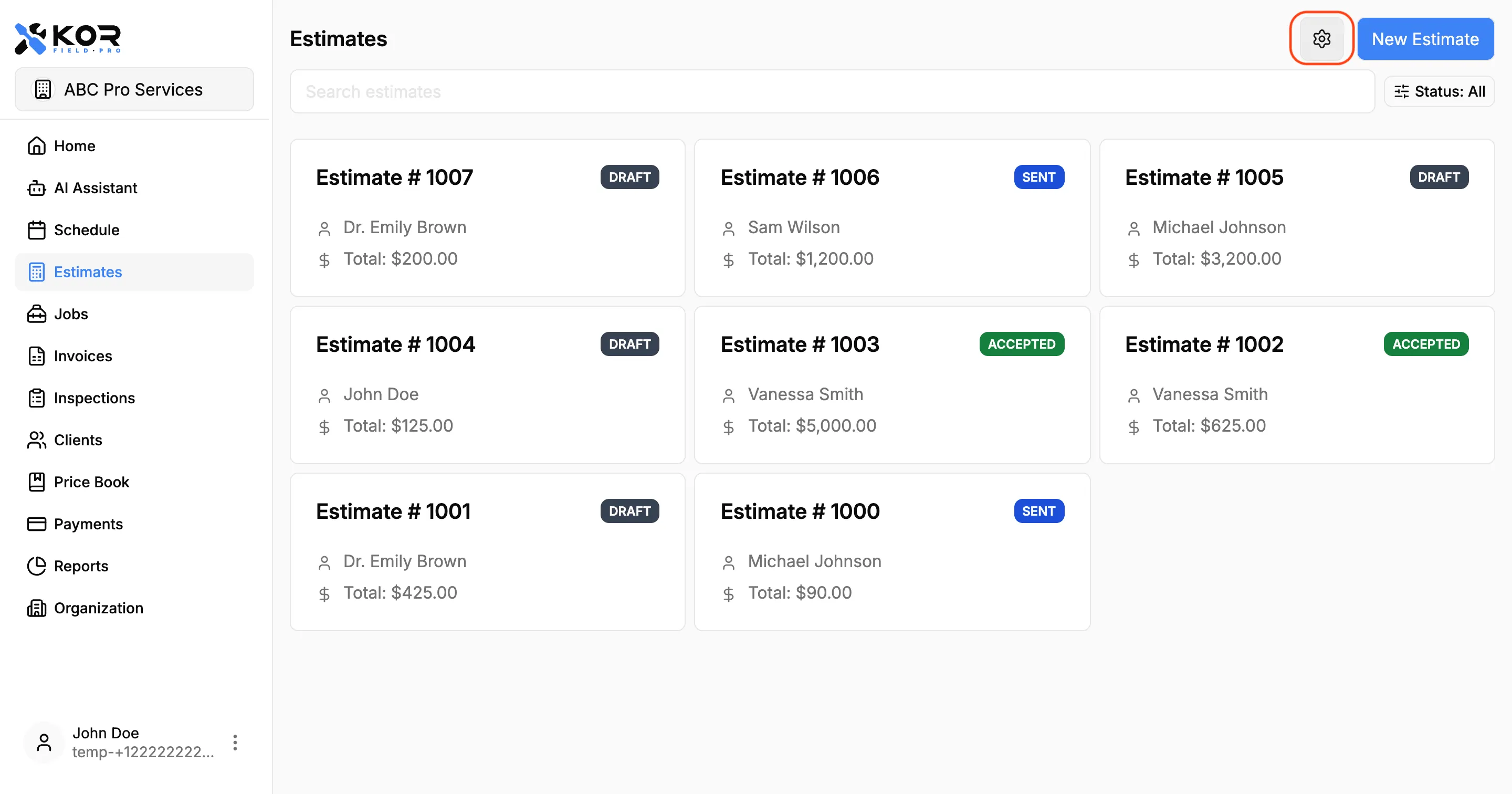
- Tap the Settings icon (gear icon) in the top-right corner of the estimates list.
- The Estimate Settings screen will open.
Estimate Footer
The estimate footer is a short message that appears at the bottom of every estimate PDF your clients receive.
Use the footer to:
- Add a thank-you or closing message
- Include contact information or next steps
- Add terms or acceptance instructions
- Share a website or referral note
Setting a Custom Footer
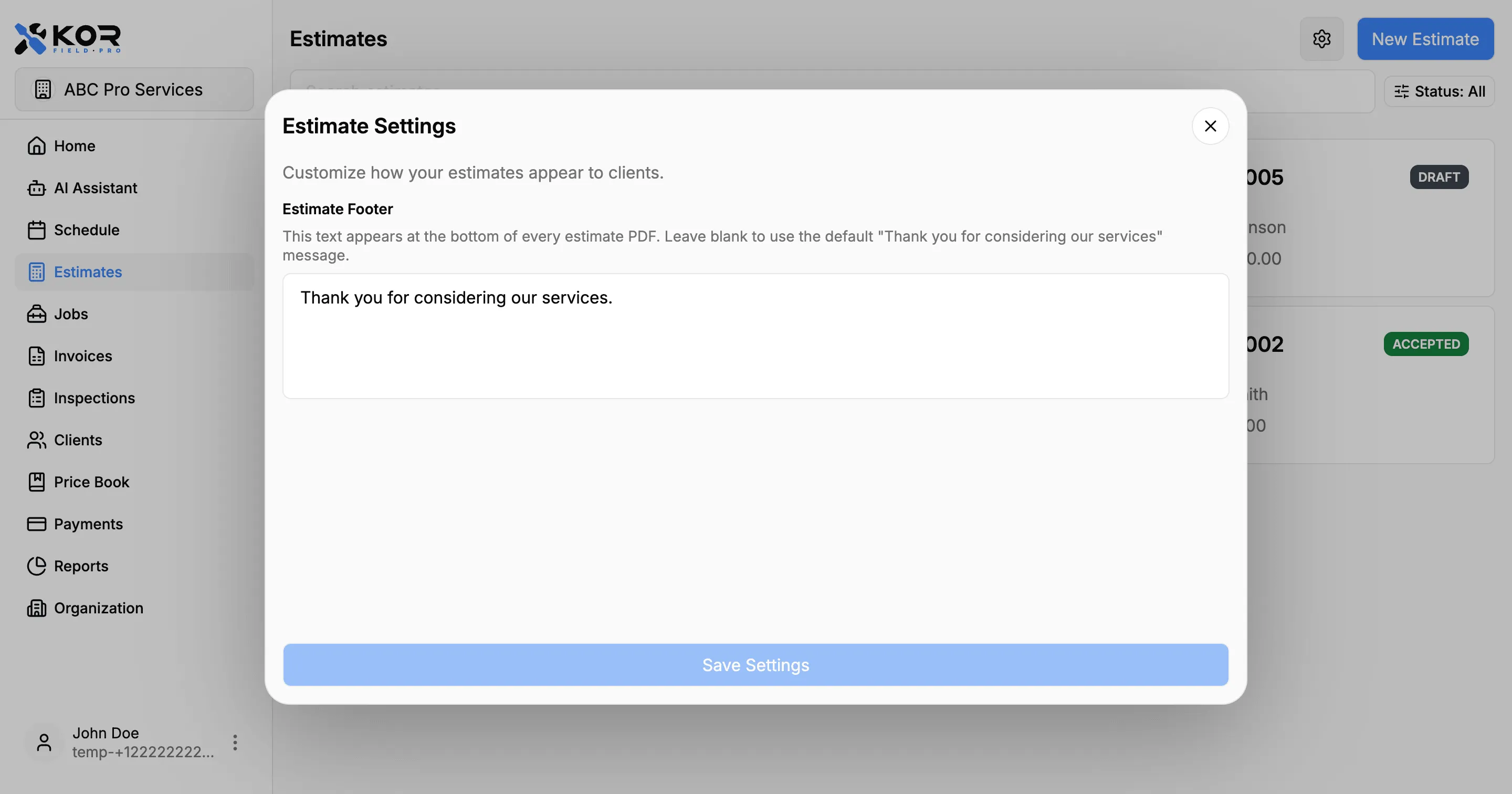
- Open Estimate Settings.
- Tap the Estimate Footer field.
- Type your message. You can use multiple lines by pressing Enter.
- Tap Save Settings.
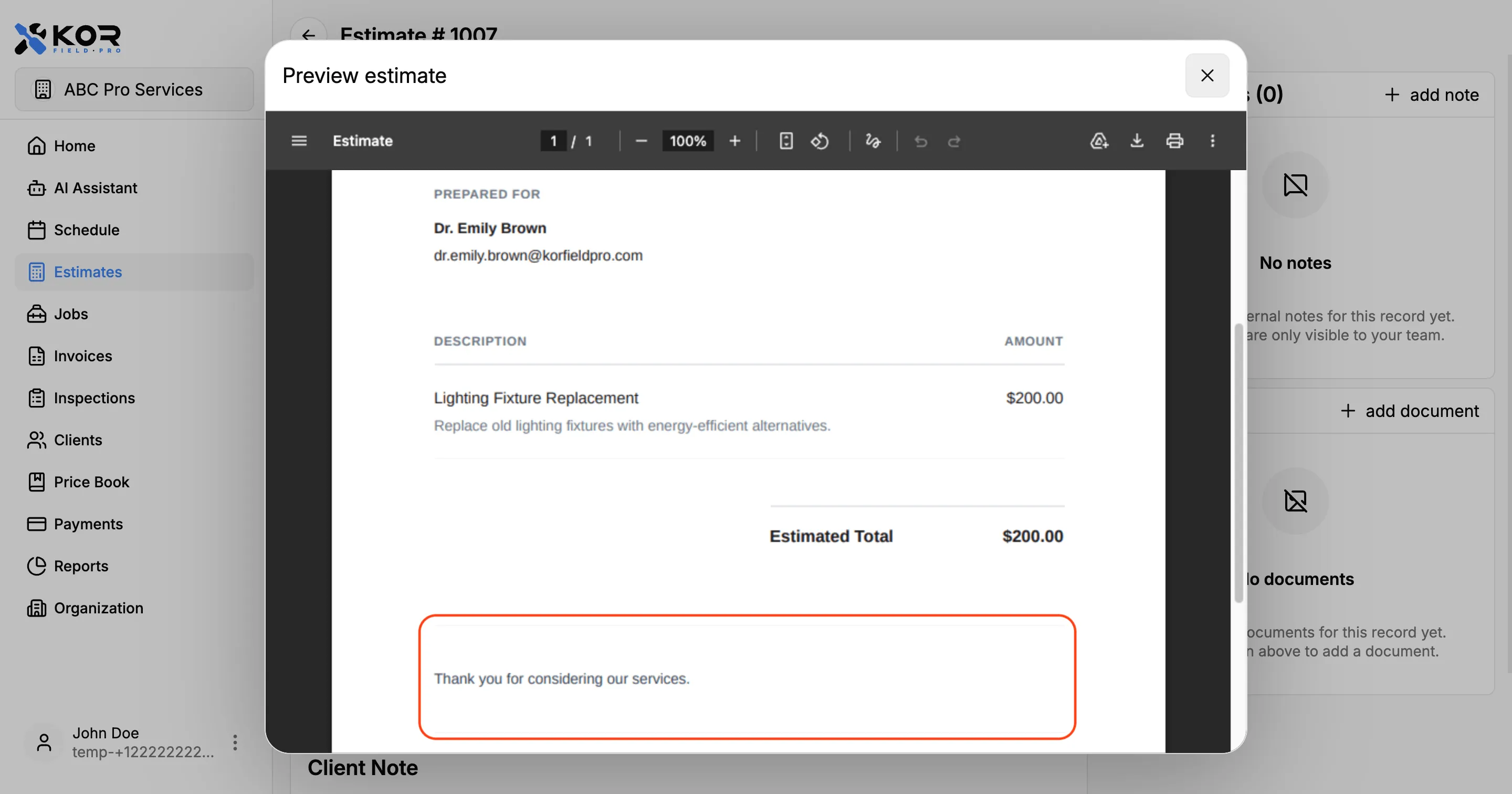
Your footer will appear on all new estimate PDFs from that point forward.
Default Footer
If you leave the footer blank, estimates will use the default message:
Thank you for considering our services.
Tips for a Good Footer
- Keep it short — one to three lines works best.
- Use it for information that applies to every estimate, not just one-off notes. For client-specific notes, use the Notes field on the estimate itself.
- Line breaks are supported, so you can format multiple lines clearly.
Need More Help?
Have questions about estimate settings? Contact support at support@korfieldpro.com or visit the help center.